Since late October 2026, restaurant owners can turn off specific third-party ordering providers, such as delivery apps, directly in the Food ordering section of their Google Business Profile, with separate switches for pickup and delivery. Before, you had to ask each provider to remove its link. Open Food ordering, test every listed link, switch off the ones you don't want, and set a preferred provider.
Have you ever searched your own restaurant on Google Maps and found an "Order online" button pointing to a delivery app you stopped using months ago? Until last week, the fix was to ask that company to take its link down and wait.
That changed on October 28, 2026. Google Business Profile online ordering now has a switch per provider: Search Engine Roundtable reported that restaurant owners can fully or partly turn off third-party ordering services from their own dashboard, for pickup, delivery, or both. Here's what changed and how to clean up your links in about 15 minutes.
What changed with ordering links on Google?
Think of your Google profile as your front counter. For years, delivery apps could leave their own takeout menus on that counter, and you needed their permission to clear them away. Now you decide which menus stay.
According to Search Engine Journal, the setting controls which ordering options show in Google Search and Maps, and it has separate switches for pickup and delivery. The panel is labeled "Show provider to customers." SEJ also quotes Google's Michael G. saying the feature applies in "all" countries.
Before this, owners removed a provider by requesting removal, and providers then had five business days to take the link down. Google's help page still describes that process, and SEJ points out the page doesn't mention the new switch yet. So if your dashboard looks a little different from the help article, that's expected.
Why are delivery apps on my profile at all?
Many owners never added these links. Google's help page explains that third-party providers which state they have an authorized relationship with your business are listed automatically.
SEJ quotes Google's current policy for ordering providers: "All partner integrations are enabled by default." In plain terms, a provider you signed up with years ago can still be sending hungry customers to its page today, even if your menu or prices there are out of date.
Old way vs new way
| Before October 2026 | Now | |
|---|---|---|
| Hide one delivery app | Ask the provider to remove its link | Switch it off yourself in Food ordering |
| How long it took | Up to 5 business days for the provider to act | Done from your dashboard |
| Pickup vs delivery | Removal covered the whole link | Separate switches for pickup and delivery |
| Hide all ordering | "Accept orders on your profile" toggle | Same toggle (no change) |
| Choose a favorite | "Set as preferred" for pickup or delivery | Same (no change) |
Sources: Google Business Profile Help, Search Engine Journal, Search Engine Roundtable.
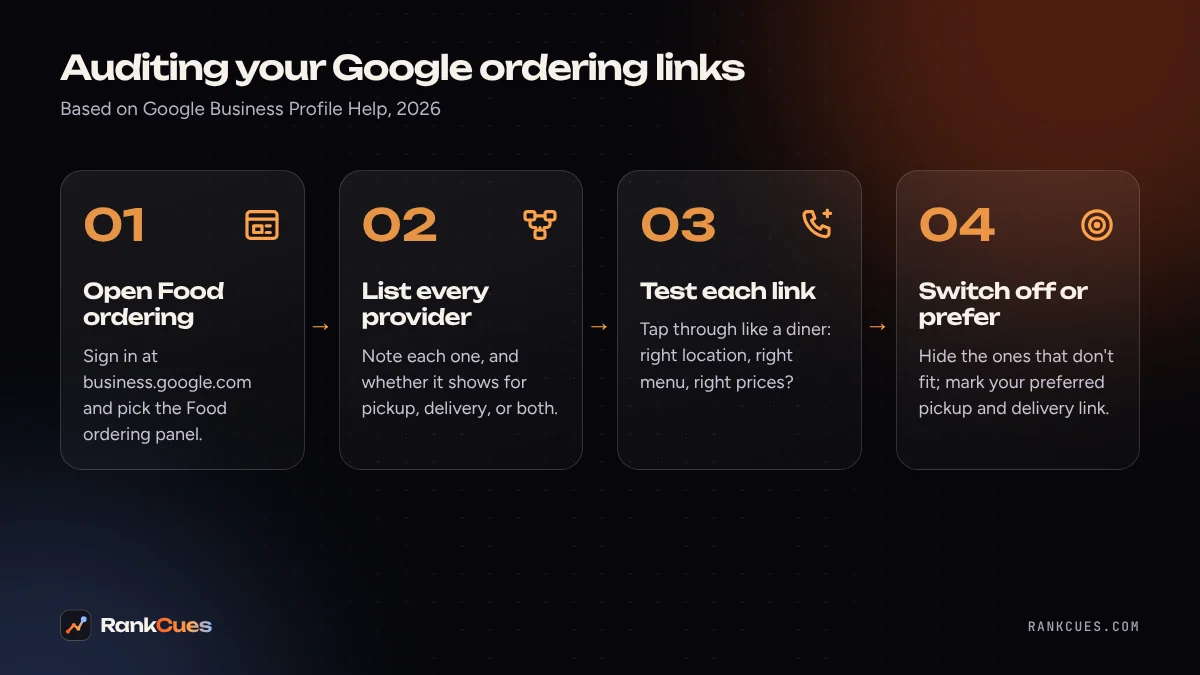
How to audit your Google Business Profile online ordering links
1. Open the Food ordering section
Go to business.google.com, choose the right location, and select Food ordering. If you manage several restaurants, write down which profile you're working on. SEJ notes it isn't clear yet whether the new setting works in bulk, so plan to go profile by profile.
2. List every provider you see
Make a quick note of each provider and custom link, and whether it shows for pickup, delivery, or both. You may find a service you forgot about, or one your previous manager signed up for. This list becomes your baseline for later checks.
3. Test each link like a hungry customer
Open your profile on your phone and tap through each ordering option. Check three things:
- Does it open the right location (not a closed branch or a different city)?
- Is the menu current, with today's items?
- Do the prices match what you expect to charge on that app?
Google's Lisa Landsman, quoted by Search Engine Roundtable, recommends regular audits of your active ordering channels to confirm each link leads to an accurate menu. A broken or stale link costs you the order and leaves the customer annoyed with your restaurant, not with the app.
4. Switch off the providers that don't fit
For any provider that's out of date, unprofitable for you, or not set up properly, turn it off. You can turn off delivery and keep pickup if that suits your kitchen better. Landsman's advice, per SER, is to keep a mix of trusted providers, since diners who prefer one app may otherwise order somewhere else. Hiding everything isn't always the best move.
5. Set your preferred pickup and delivery option
Google's help page lets you select a provider or link, choose Set as preferred, and turn on Preferred for pickup and/or Preferred for delivery. If you have your own online ordering page, you can add it with Add a link and mark it as preferred. You can't set pickup or delivery for a provider that doesn't offer it.
6. Know when to use the master switch
Turning off Accept orders on your profile hides every third-party order option and link you've added. That's useful if you've paused takeout during a remodel or a staffing gap. Just remember to switch it back on.
 Photo by planet_fox on Pixabay
Does this affect my Google Maps ranking?
Nobody outside Google can say that hiding or keeping a provider changes your Google Maps ranking, and Google hasn't said it does. The practical win is simpler: customers who tap "Order" land on a menu that's correct, through a service you actually use.
What helps your visibility is a complete, accurate profile overall. Getting your primary and secondary Google Business Profile categories right matters more for showing up in "restaurants near me" searches. Ordering links are one more part of keeping the profile tidy.
How often should I check my ordering links?
Once a month is a sensible habit, plus any time you change your menu, prices, or delivery partners. Since providers are switched on by default, a new integration could appear without you adding it.
Fold this into the routine you already use for your profile. Our checklist of Google Business Profile changes in 2026 covers suggested edits, reviews and other updates worth checking at the same time. And if you'd like a quick score of your profile, our free Google Business Profile checker flags common gaps.
Want help cleaning up your restaurant's profile?
If you run more than one location, or you're unsure which delivery partners are worth keeping on Google, our Google Business Profile optimization team can review it with you. Start with a free business audit and we'll point out what to fix first.
Sources
- Search Engine Roundtable: Google Business Profiles finally adds third-party ordering controls (Oct 28, 2026)
- Search Engine Journal: Google lets restaurants directly opt out of ordering providers (Oct 28, 2026)
- Google Business Profile Help: Manage online ordering options
Frequently asked questions
Can I remove a delivery app from my Google Business Profile?
Yes. Search Engine Roundtable and Search Engine Journal reported on October 28, 2026 that restaurants can now turn off individual third-party ordering providers from the Business Profile dashboard, for pickup, delivery, or both.
Why is a delivery app showing on my profile if I never added it?
Google's help page says third-party providers that state they have an authorized relationship with your business are listed on your profile automatically. Search Engine Journal also quotes Google's provider policy: all partner integrations are enabled by default.
What's the difference between removing a provider and turning off ordering completely?
Turning off one provider hides only that option. Turning off Accept orders on your profile hides every third-party order option and link you've added, according to Google's help page.
Does this work for restaurants with several locations?
The setting sits in each profile's Food ordering section. Search Engine Journal notes it isn't clear yet whether it can be changed in bulk or through the Business Profile API, so multi-location owners should check each profile.